Loading content…
Navigate the App
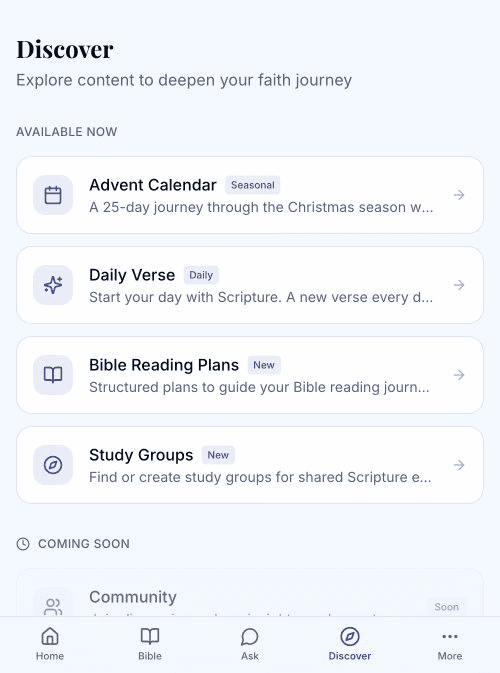
TheoScriptura is designed for simplicity. Everything you need is accessible from the bottom navigation bar.
Bottom Navigation
The navigation bar appears at the bottom of every screen:
| Position | Icon | Name | Purpose | |----------|------|------|---------| | 1 | House | Home | Your personalized dashboard | | 2 | Book | Bible | Browse and read Scripture | | 3 | Speech bubble | Ask | Ask questions about Scripture | | 4 | Compass | Discover | Find plans, groups, and content | | 5 | Three dots | More | Settings and additional options |
Home Dashboard
Your home screen shows:
- Personalized welcome — "Welcome back, [Your Name]"
- Ask prompt — Quick access to ask questions with suggested topics
- Continue Reading — Pick up where you left off
- Recent chapters — Quick links to chapters you've read
- Reading Plans — Your active plans and recommendations
- Today's Verse — Daily Scripture inspiration
Discover Page
The Discover page is your hub for finding content:
Available Now
- Advent Calendar — Seasonal 25-day devotional
- Daily Verse — Fresh Scripture each day
- Bible Reading Plans — Curated plans for every interest
- Study Groups — Join others reading together
Coming Soon
- Community — Discussions and shared insights
- Blog & Articles — Theological content and study guides
Settings & More
Tap More to access:
About
- Our Story
- Vision
Features
- Notifications
- Offline Reading
- Support Our Mission
- Contact Us
Legal
- Terms of Service
- Privacy Policy
Quick Actions
Start Reading
- Tap Bible in the navigation
- Select a book from the list
- Choose a chapter
Ask a Question
- Tap Ask in the navigation
- Type your question
- Tap the send button
Find a Reading Plan
- Tap Discover in the navigation
- Select Bible Reading Plans
- Browse and choose a plan
Access Settings
- Tap More in the navigation
- Select Settings or any other option