Loading content…
Browse the Bible
Find and read any book and chapter in the Bible with TheoScriptura's intuitive browser.
Access the Bible
- Tap Bible in the bottom navigation bar
- You'll see a list of all 66 books organized by section
Bible Organization
Books are grouped into familiar sections:
Old Testament
- Pentateuch — Genesis, Exodus, Leviticus, Numbers, Deuteronomy
- Historical — Joshua through Esther
- Wisdom — Job, Psalms, Proverbs, Ecclesiastes, Song of Solomon
- Major Prophets — Isaiah, Jeremiah, Lamentations, Ezekiel, Daniel
- Minor Prophets — Hosea through Malachi
New Testament
- Gospels — Matthew, Mark, Luke, John
- History — Acts
- Pauline Epistles — Romans through Philemon
- General Epistles — Hebrews through Jude
- Prophecy — Revelation
Select a Book
- Scroll through the book list
- Tap a book name (e.g., "Genesis")
- You'll see a grid of chapter numbers
Select a Chapter
- After selecting a book, view the chapter grid
- Tap any chapter number
- The chapter text loads immediately
Navigation Header
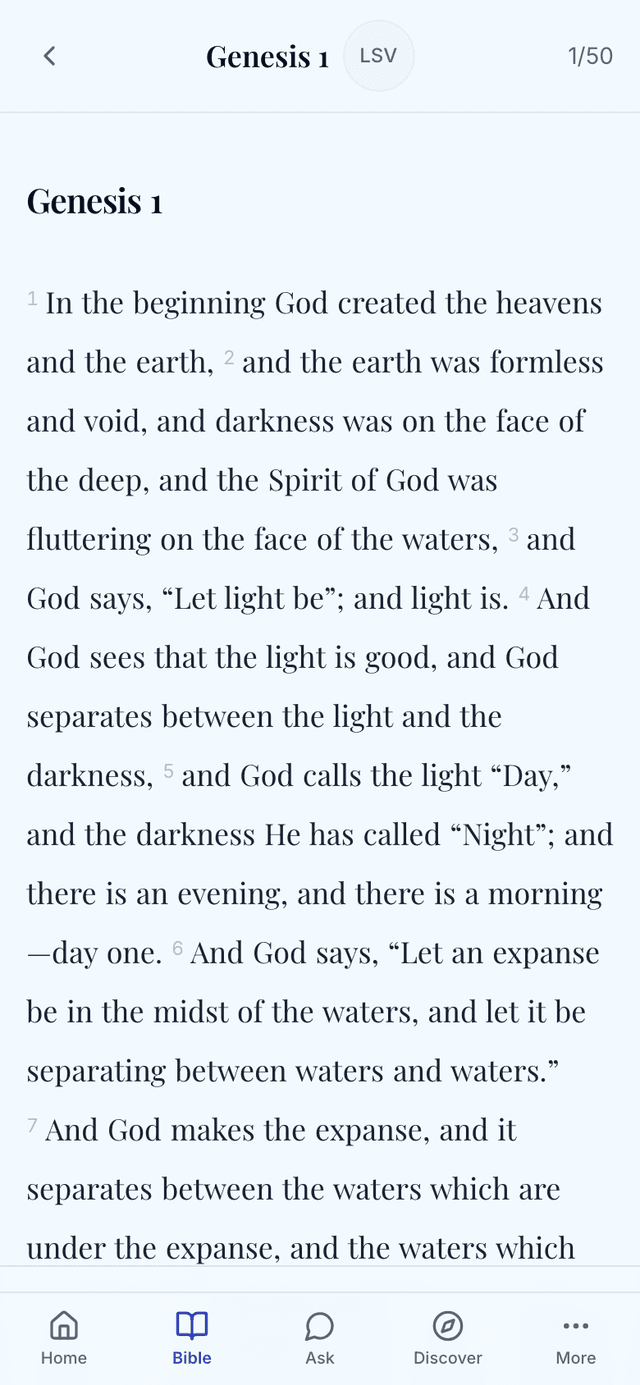
When reading a chapter, the header shows:
- Back arrow — Return to chapter selection
- Book and Chapter — Current location (e.g., "Genesis 1")
- Translation badge — Current translation (e.g., "LSV")
- Chapter counter — Position in book (e.g., "1/50")
Quick Chapter Navigation
While reading, you can quickly move between chapters:
- Swipe left/right on the chapter text
- Use the chapter picker in the header
Recent Reading
Your recently read chapters appear:
- On the Home dashboard under "RECENT"
- Quick tap to return to any recent chapter