Loading content…
Daily Reading Experience
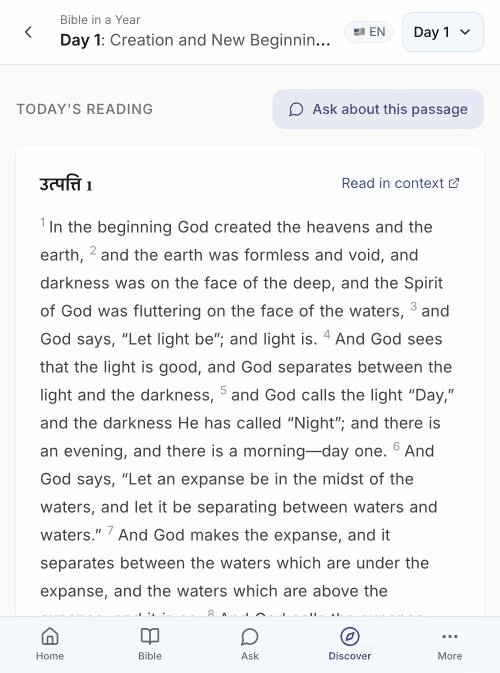
Each day of a reading plan provides Scripture, reflection, and space for your thoughts.
Day Page Layout
Header
- Plan name — Which plan you're reading
- Day title — Theme for today (e.g., "Day 1: Creation and New Beginnings")
- Language selector — Switch content language
- Day picker — Jump to any day
Today's Reading Section
- Ask button — "Ask about this passage" for AI insights
- Passage title — Book and chapter (may be in selected language)
- Read in context — Link to full chapter in Bible reader
- Scripture text — The day's reading with verse numbers
Reflection Questions
Numbered prompts to guide your meditation:
- Personal application
- Spiritual growth
- Community engagement
Your Notes
- Text area for personal reflections
- 500 character limit
- Saves automatically
Navigation Footer
- Mark Complete — Check off today's reading
- Day counter — "Day X of Y"
- Home button — Return to plan overview
- Next button — Go to next day
Reading the Passage
The day's Scripture appears in your selected translation. Features include:
- Verse numbers — Superscript references
- Red letters — Jesus's words highlighted (if enabled)
- Continuous text — Flows naturally for reading
Ask About This Passage
Get AI-powered insights on the day's reading:
- Tap Ask about this passage
- The Ask interface opens with context
- Ask questions specific to the reading
- Get answers relevant to today's Scripture
Add Personal Notes
Capture your thoughts and reflections:
- Scroll to Your Notes
- Tap the text area
- Type your reflections (up to 500 characters)
- Notes save automatically
Notes are private and visible only to you.
Mark Day Complete
After finishing your reading:
- Tap the green Mark Complete button
- The day is checked off
- Your progress updates
- Option to continue to next day
You can mark days complete in any order.
Navigate Between Days
Day Picker
- Tap the Day X dropdown in the header
- Select any day from the list
- Jump directly to that day
Sequential Navigation
- Tap Next to advance one day
- Use browser back or back arrow to return
Continue Where You Left Off
Your current day is always accessible:
- Home dashboard — "Continue Reading" card
- My Plans — Shows current day for each plan
Next Steps
- Track Your Progress
- Create Custom Plans (Scholar tier)